GA4 Monthly Report Template: What to Include and How to Automate It
A practical GA4 monthly report template for marketers, founders, and client teams who need clear traffic updates without rebuilding the same report every month.
If you need to send a GA4 monthly report every month, the hardest part usually is not finding the data.
It is turning GA4 into something another person can understand quickly.
A useful monthly report should answer a few simple questions:
- Did traffic grow or drop?
- Which channels drove that change?
- Which pages pulled the most weight?
- Did the site generate the outcomes you care about?
- What should we do next?
That sounds straightforward, but GA4 often pushes you into a maze of separate reports, tabs, and exports before you can get there.
This guide gives you a practical GA4 monthly report template you can reuse for clients, internal stakeholders, or your own team. It also shows how to make the workflow less manual over time.
Who this GA4 monthly report template is for
This format works well if you are:
- Reporting to a founder, manager, or client
- Running marketing for a small team
- Managing more than one site or property
- Trying to make GA4 easier to explain to non-specialists
If your audience wants every raw dimension and every export, this is not that kind of report.
This template is designed for clarity first. Most stakeholders do not want fifteen screenshots. They want the story behind the month.
What a good GA4 monthly report should include
A strong monthly report usually has five sections:
- A short executive summary
- Traffic trend and high-level performance
- Acquisition and channel mix
- Top pages or landing pages
- Conversions, insights, and next actions
That is enough for most teams.
You can pull those sections from GA4 using reports like Traffic acquisition, Pages and screens, Landing page, and Realtime when you need a quick sanity check in the moment. Google documents the report structure and standard reports in its Analytics Help Center, which is useful if you need to confirm where a metric lives in the current interface.
- Google Analytics reports overview
- Traffic acquisition report
- Pages and screens report
- Landing page report
The simplest GA4 monthly report structure
1. Executive summary
Start with three to five lines in plain English.
This section is more important than most people think. Many stakeholders will only read this part closely, so it should summarize the month without assuming they know GA4 terminology.
A simple format:
- Traffic: Sessions up 12% month over month
- Main driver: Organic search led most of the growth
- Standout page: Pricing page and one blog post drove the biggest gains
- Outcome: Demo requests stayed flat despite traffic growth
- Next step: Improve conversion rate on high-intent pages
If you send the report to clients, this is the part that makes the rest of the report feel coherent.
2. Traffic trend
This is your top-line view.
For most monthly reports, track:
- Sessions
- Users
- Engaged sessions or engagement rate
- Month-over-month change
Do not overload this section. If traffic is flat, just say it is flat. If traffic moved sharply, note the reason if you know it.
Examples:
- "Sessions increased after three new comparison posts started ranking."
- "Traffic dipped because paid search spend was reduced in the second half of the month."
- "Users rose, but engaged sessions did not rise at the same pace, which suggests the extra traffic was lower intent."
This is the first place where a chart helps, but the chart alone is not the report. The sentence underneath matters more.
3. Acquisition and channel mix
This section answers: where did the traffic come from, and did the mix change?
Look at your main channels, usually:
- Organic search
- Direct
- Referral
- Paid search
- Social
You do not need to comment on every channel. Focus on the ones that moved or the ones that matter most to the business.
For example:
- Organic search grew from 39% to 46% of sessions
- Paid search declined after budget changes
- Referral traffic spiked because of one partnership placement
If your acquisition data looks messy, fix that before building a nice monthly report. A clean template will not save broken attribution. If that is your current issue, start with our guide to fix GA4 (not set) and Unassigned traffic.
4. Top pages and landing pages
This is where the report becomes useful for content, SEO, and product teams.
Top pages show what people spent time with. Landing pages show what brought people in.
Those are related, but not the same.
Good things to highlight:
- Which pages gained the most traffic
- Which landing pages attracted new visitors
- Whether branded or non-branded content did the heavy lifting
- Whether your pricing, signup, or product pages are gaining visibility
If you run a content-heavy site, this section often tells the real story of the month better than the homepage numbers do.
For example:
- A setup guide may drive top-of-funnel organic traffic
- A pricing page may convert high-intent branded traffic
- A comparison page may bring in strong commercial search intent
That is why pages and landing pages deserve their own section instead of being buried under a big export.
5. Conversions, takeaways, and next steps
This is the part many reports skip, which is exactly why so many monthly updates feel unfinished.
Do not end with numbers alone. End with a point of view.
If you track conversions or key events in GA4, summarize:
- Which conversions increased or dropped
- Which channels or pages influenced them
- Whether traffic quality improved or weakened
Then close with one to three recommendations, such as:
- Double down on topics that produced high-intent organic traffic
- Improve calls to action on landing pages with strong traffic but weak conversion
- Investigate a drop in paid traffic before next month
This is what turns a report into a decision-making tool.
A copy-and-paste GA4 monthly report template
You can use this structure directly:
# GA4 Monthly Report: [Month Year]

## 1. Executive summary
- Traffic:
- Main growth driver:
- Biggest decline or risk:
- Conversion summary:
- Recommended next step:

## 2. Traffic overview
- Sessions:
- Users:
- Engagement rate or engaged sessions:
- Month-over-month change:
- Short explanation:

## 3. Acquisition
- Top channels this month:
- Biggest channel change:
- Notes on attribution or campaign quality:

## 4. Top pages and landing pages
- Top pages by views:
- Top landing pages by sessions:
- Pages with the biggest growth:
- Pages with the biggest drop:

## 5. Conversions and actions
- Key events or conversions:
- Pages or channels influencing them:
- Recommended actions for next month:
If you are reporting to executives, keep it short.
If you are reporting to a marketing team, you can add a little more detail below each section. The template stays the same.
Common mistakes in GA4 monthly reports
Too many screenshots
Screenshots make a report longer, but not necessarily better.
Use visuals to support the story, not replace it.
Reporting every metric equally
Not every number deserves airtime every month.
If one metric changed meaningfully, talk about it. If another stayed stable and had no business impact, keep it short.
Mixing up top pages and acquisition
A page with lots of total views is not automatically the page that brought new traffic in.
That is why landing pages and top pages should be reviewed separately.
Ignoring attribution issues
If GA4 is filling with bad channel labels, your monthly report will inherit that problem.
If you suspect data quality issues, also check whether cross-domain journeys or self-referrals are muddying the numbers. We covered that in our cross-domain tracking guide.
Ending without recommendations
A monthly report should help someone decide what to do next.
Even one good recommendation is better than ten unexplained charts.
How to make the workflow less manual
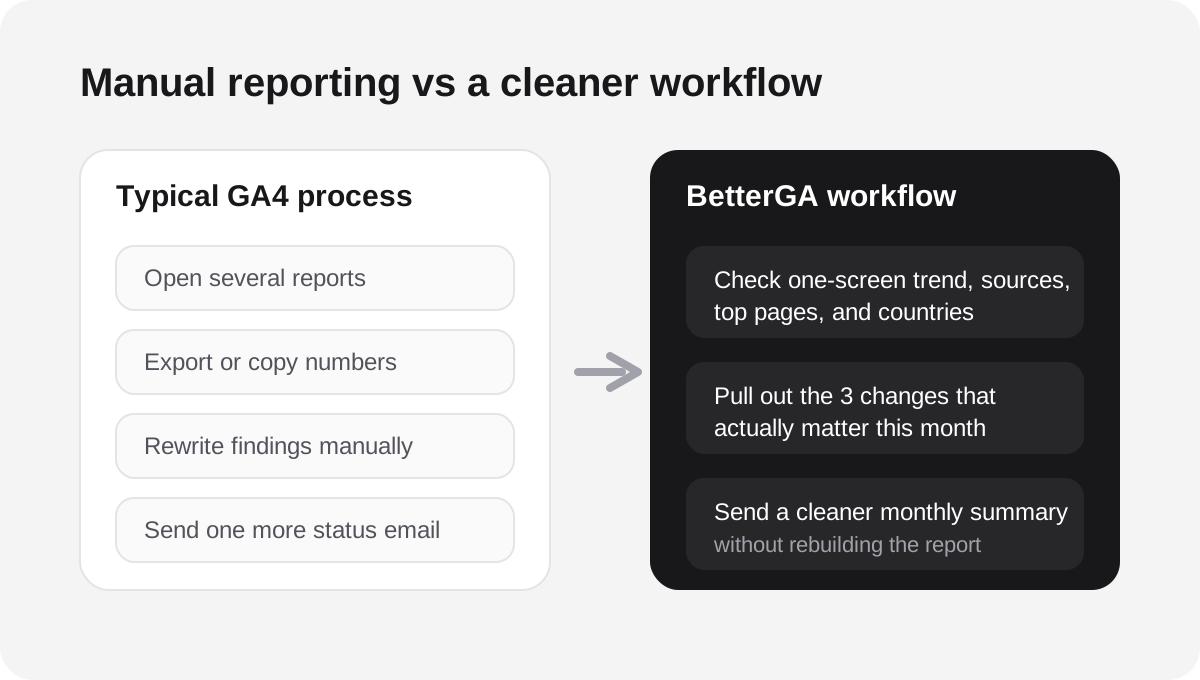
The frustrating part of monthly reporting is usually the repetition:
- Open the same GA4 reports
- Pull the same metrics
- Re-explain the same numbers
- Rebuild the same summary
That is exactly where a simpler dashboard helps.
BetterGA is not a replacement for every GA4 report. It is the cleaner layer you use for the recurring questions:
- How did traffic trend this month?
- Which sources mattered?
- Which pages drove the most activity?
- Which properties need attention?
That makes it easier to draft the monthly narrative without jumping through multiple GA4 menus every time.
If you manage more than one site or workspace, the value is even clearer because the reporting habit stays consistent across properties.
A practical way to use this with BetterGA
One useful workflow is:
- Use GA4 for setup, event validation, and deeper investigation when needed
- Use BetterGA for the recurring high-level reporting view
- Turn that view into a short monthly summary for stakeholders
That works especially well if your team mostly needs:
- traffic trend
- top sources
- top pages
- top countries
- quick monthly comparisons
If you are still getting the property configured, start with our complete GA4 setup guide. If the numbers still look empty or delayed, our guide on why GA4 is not showing data is the best next stop.
Final takeaway
The best GA4 monthly report template is usually not the most detailed one.
It is the one people can read in five minutes and act on right away.
If you keep your report focused on traffic trend, acquisition, top pages, conversions, and next actions, you will already be ahead of most monthly reporting workflows.
And if pulling those numbers out of GA4 keeps turning into a chore, that is a strong sign you need a simpler reporting layer around it.
Keep the setup simple
Use BetterGA to check your numbers without fighting GA4.
Once your tracking is live, BetterGA gives you a cleaner view of your traffic, top pages, and growth trends without the usual Google Analytics clutter.